Source preview guide · 0.1.0
Find your way around the workbench
Choose the right view for source setup, scanner readiness, finding review, background work and settings.
Open the paired workbench
Run CodeSecurity: Open Dashboard in the connected VS Code profile. The integrated browser uses its own acknowledged membership in the local installation. An existing paired browser can also open the local control origin. Use the authentication guide to add or recover a browser.
An ordinary dashboard opening goes to Projects when there is no scan history and Findings when results exist. An explicit view or finding link keeps its destination. Reloading retains the selected view and scan in the URL. A failed initial read produces an error instead of pretending the installation is empty.
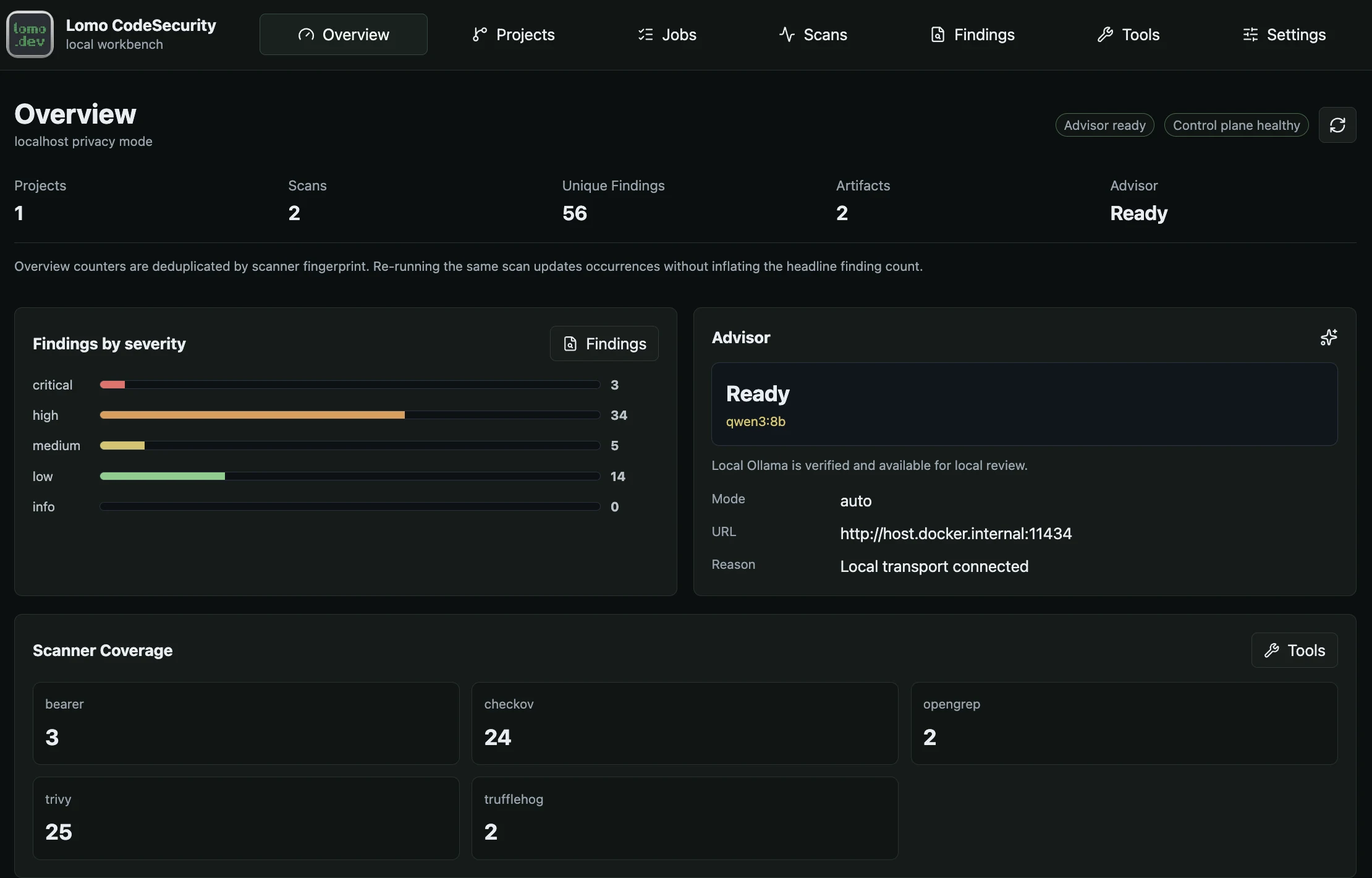
Overview summarizes retained results across projects. Use Projects, Jobs, Scans and Findings to follow a repository into its evidence.
Open the full imageChoose a view by task
| View | Use it for |
|---|---|
| Overview | Read installation summaries, recent activity and routes into the work that needs attention. |
| Projects | Register an authorized source directory, inspect Scan setup, start analysis and edit one repository’s scan gate. |
| Jobs | Follow preparation, scans, Advisor and recovery work by their durable identities. |
| Scans | Choose a recorded analysis and inspect its state before opening the associated findings. |
| Findings | Filter and review exact scan-local findings, evidence, dispositions and optional advice. |
| Tools | Enable scanners, inspect readiness, prepare data and review advanced scanner maintenance. |
| Settings | Manage protection requests, workspace access, Advisor providers, trusted members and installation controls. |
Overview counters are deduplicated by scanner fingerprint. They answer a different question from the number of rows in one selected scan. Use the scan-specific result when reviewing a particular source snapshot.
Set up a project
In Projects, expand Register Project. On first setup it is already open; returning users see existing projects and scan controls first. Closing the section keeps an unfinished form.
Enter the exact directory and choose Add Project only after that directory is inside an authorized source boundary. Authorize another source root prepares a separate host action. The browser cannot apply a Docker bind mount itself.
For the selected project, Scan setup checks three prerequisites in order:
- Core services are available.
- The selected source is accessible through its authorized boundary.
- The required scanner data is ready.
Each incomplete step offers its own recovery action. Ready checks collapse into a summary that can be expanded with the keyboard or mouse. If a prerequisite is lost, the guidance returns. Follow source and scans for exact source and coverage choices.
Prepare tools before diagnosing findings
Tools shows enabled scanners, installed versions and readiness. Prepare all scanners checks the reviewed catalog, downloads required data through the separate updater and verifies the resulting inputs. Follow its linked job instead of repeatedly submitting preparation.
Complete scans wait for all enabled tools to be ready. Limited coverage is an explicit alternative when some tools can run; its result stays partial. Tool readiness and finding policy are different concerns. Changing a threshold cannot repair a missing database or scanner failure.
Keep a finding attached to its scan
In Findings, start with the project, source, coverage target and scan selector. The status and gate above the results apply to that selected scan.
Search and severity shortcuts narrow the list. Filters and scanner counts exposes scanner, severity and lifecycle filters. Selecting a row opens its detail; checking rows prepares an explicit bulk action. Those are different selections, and merely checking rows performs no mutation.
Use the detail’s source action for navigation, Lifecycle for a disposition and Run Advisor for optional advice. The finding review guide explains their consequences and the evidence pane controls.
Use Settings without losing a draft
Settings groups controls into Protection, Workspace access, Advisor, Trusted access and Installation. Section links move within the page. Exact repository, IDE-access and provider links open the relevant section directly.
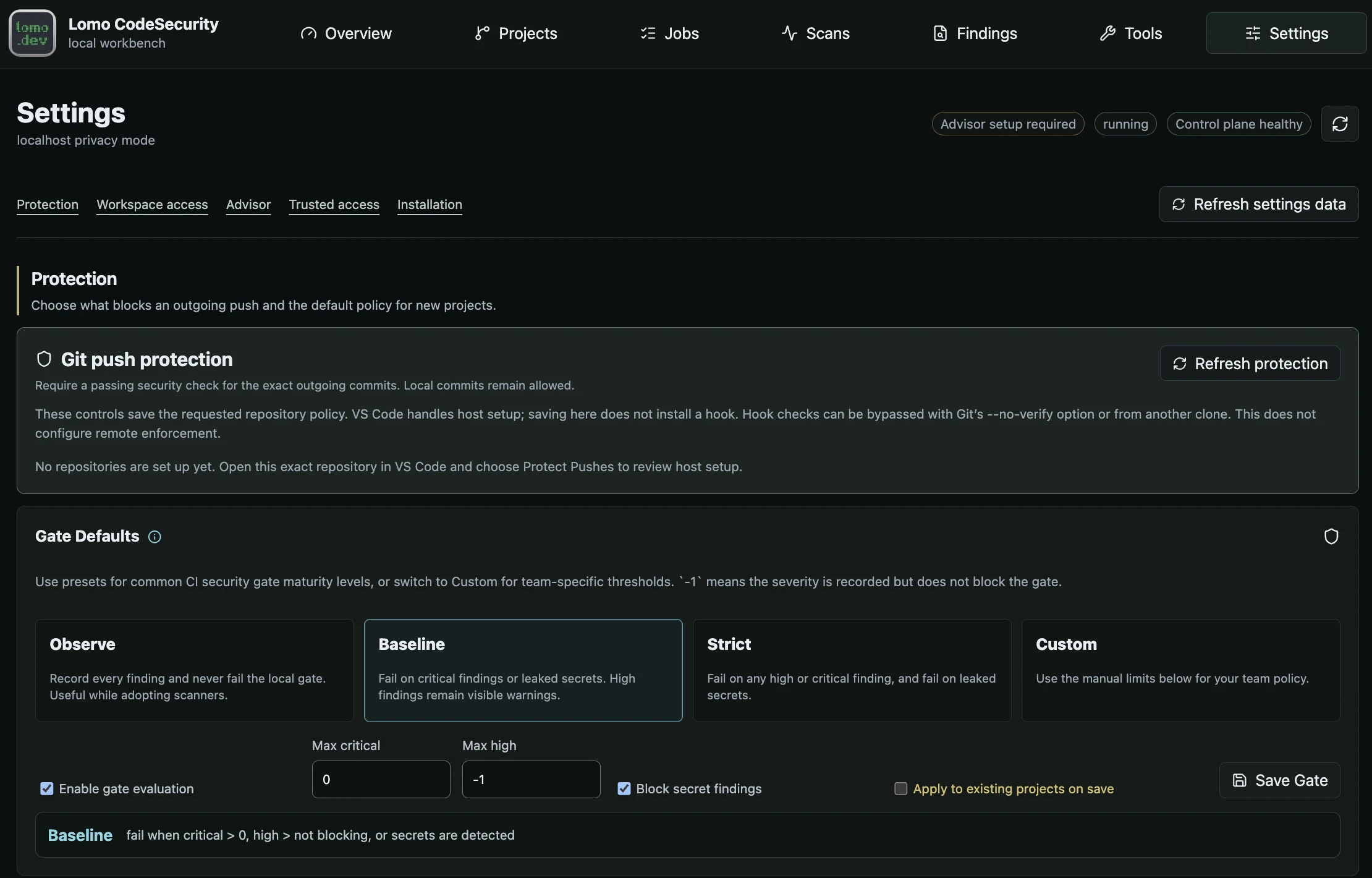
Settings groups protection, workspace access, Advisor, trusted access and installation controls. Saved policy and applied host state remain separate.
Open the full imageRefresh settings data retains unsaved input in edited sections and loads current values into untouched sections. Refreshing does not save a draft. A successful scoped save updates that section while preserving drafts elsewhere.
If saving cannot be confirmed, the draft stays visible because the backend may already have accepted it. Restore the connection, reload and compare the current values before saving again. An invalid Settings read also retains the draft and disables saving until a valid reload succeeds.
A manually opened Advisor provider form survives reload. If another client changes the provider collection, that form cannot overwrite the newer revision. Keep any text you need, cancel the form, then reopen the provider against the current collection.
Use Repository scan gate on Projects to change one project’s policy. Use Settings for its separate protection request and host observation. Saving either a gate or a requested protection setting does not install a local hook.
Follow work without duplicating it
Open Jobs after submitting preparation, a scan or Advisor. The task list exposes the admitted job, current progress, result links and eligible recovery controls. Search and filters narrow the list while overall counts remain installation-wide.
An unavailable read and an empty history are different states. If a refresh fails after data has loaded, the existing rows remain visible with the error. Use Refresh to reconcile them; do not assume that work stopped or create a duplicate command. Continue with the jobs guide.
Read the implementation when the boundary matters
The authority chapter explains why browser membership, IDE access and source grants are separate. Scanning follows source through the tools, and jobs and evidence explains how results become durable. These concepts are useful when a button’s observed result differs from its requested action.