Source preview guide · 0.1.0
Review findings and record a decision
Follow a report from its scan and source evidence to a reasoned lifecycle decision, then verify changed code with a new scan.
Start with the scan you intend to review
Open Findings in the workbench. Choose the project and scan, then read the source, coverage, scan state and gate summary above the list. A file-only scan answers a narrower question than a repository scan. A committed-tree scan describes that recorded Git tree, even when your current working copy looks different.
Use the search field and severity shortcuts to narrow the list. Expand the filters when you need a scanner or lifecycle state, and use Clear filters to return to the broader view. A filtered empty list does not mean the scan found nothing. Check its summary and active filters first.
Select a finding row to open its detail. The row’s checkbox has a separate purpose: it adds that finding to a bulk action. You can inspect a report without selecting it for a mutation.
Read the report beside its evidence
A useful review connects six pieces of information: the finding identifier, scanner and rule, severity, source location, message, and captured evidence. Read them together. A rule that identifies a risky API call may still require you to trace whether untrusted input reaches that call. Scanner severity describes the report; it does not replace that investigation.
The evidence pane starts near the relevant range. More code, Compact code and Max height change how much captured evidence you can see. They do not fetch omitted repository content. Copy evidence copies the captured sanitized evidence, including text outside the current visible portion, so review that text before sharing it.
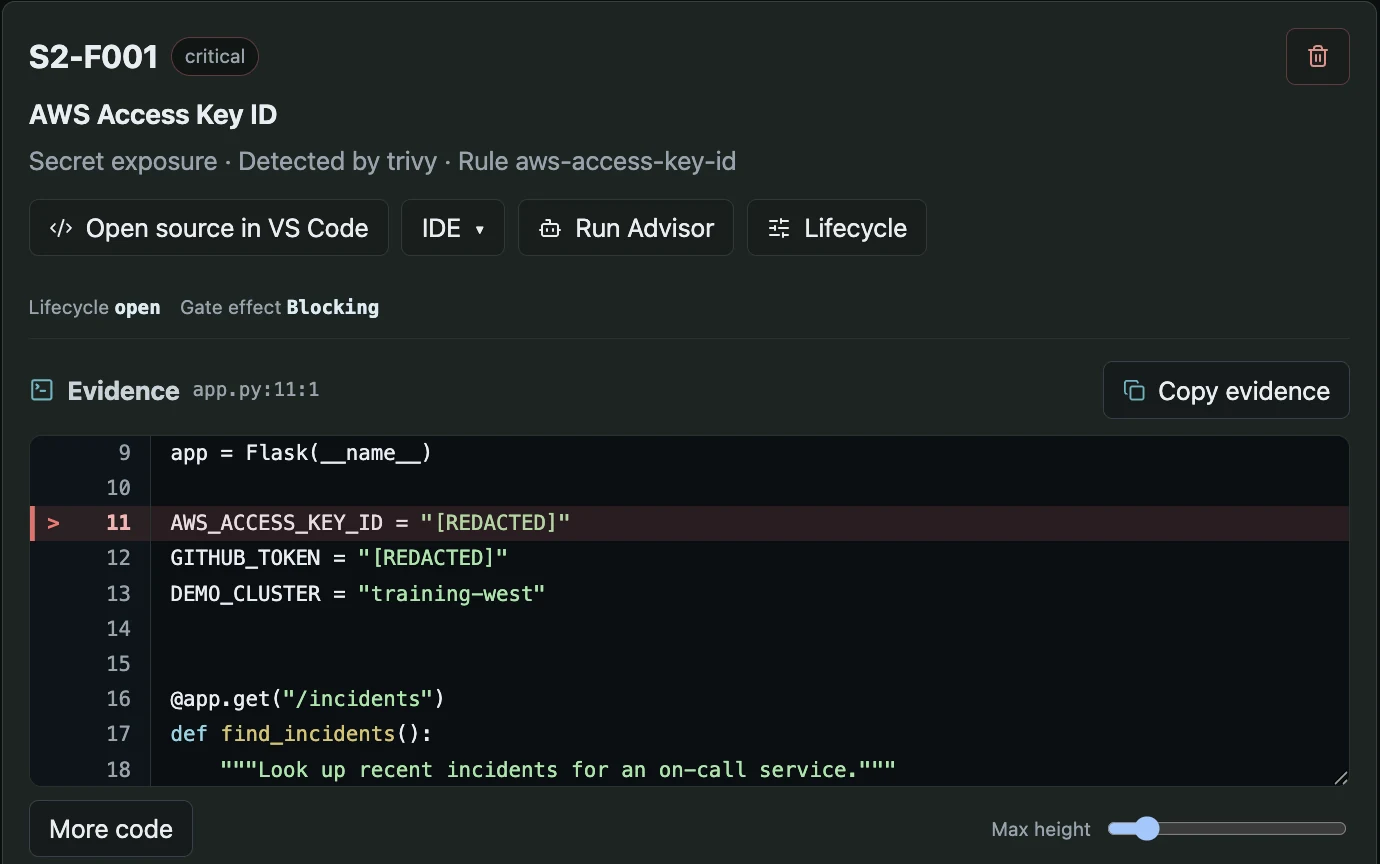
Inspect the rule, location and evidence before recording a decision.
Open the full imageUse the finding’s suggested fix as a proposal to inspect. The product does not apply it to your source automatically. If you need another reading, use Advisor for that finding and compare its answer with the source and scanner rule.
Open the right source in the right editor
For a workspace finding, use Refresh IDEs, choose the intended paired IDE target, then Open source in VS Code. This is helpful when several windows or profiles are connected. Choosing a target neither pairs an editor nor grants it source access.
The source action checks the finding, project, source context and target client. A missing file, changed source, wrong client or unsupported context can prevent navigation. Follow the reported reason instead of opening a similarly named file and assuming it is the same evidence.
A historical committed-tree finding cannot open your current workspace file as if it were the scanned version. Review its captured evidence and exact scan identity. Use Git to inspect that commit when you need more context. The VS Code guide explains the separate Reveal Finding in Editor and Open Finding in Web actions.
Separate repeat history from reports at one location
Several scanners can report the same source range. Other reports at this location in this view helps you compare reports loaded for that exact location. Each keeps its own rule, severity, lifecycle and gate effect. The group describes the loaded view, not an exhaustive search across every project and scan.
Repeat information answers a different question: whether the same scanner and fingerprint have appeared for the project across scans. Identical reports within one scan can be canonicalized, while later observations contribute to repeat history. A repeated report is not proof that a new scan inspected unchanged source.
In VS Code, an inline +N reports suffix similarly tells you that the location has more than one report. Use the tree or finding chooser to select the one you intend to change.
Choose a lifecycle state with a reason
Open Lifecycle in the finding detail. Choose the state that describes your decision, then review the updated gate effect and scan summary.
| Disposition and control | Ordinary counts | Can block the gate | Reason required |
|---|---|---|---|
| Open: Reopen as blocking | Yes | Yes, according to policy | No |
| Needs review: Needs review | Yes | Yes, according to policy | No |
| Non-blocking for gate: Non-blocking for gate | Yes | No | Yes |
| Accepted risk: Accept risk | Yes | No | Yes |
| Ignored: Ignore / not counted | Suppressed | No | Yes |
| False positive: False positive | Suppressed | No | Yes |
| Fixed: Mark fixed | Suppressed | No | Yes |
The five choices that exempt or suppress a finding require a nonempty reason, with a maximum of 500 characters. Give the next reviewer enough context to understand the decision. For example, explain the relevant validation or link to an internal decision using information appropriate for this installation. Avoid placing credentials or unnecessary source text in the reason.
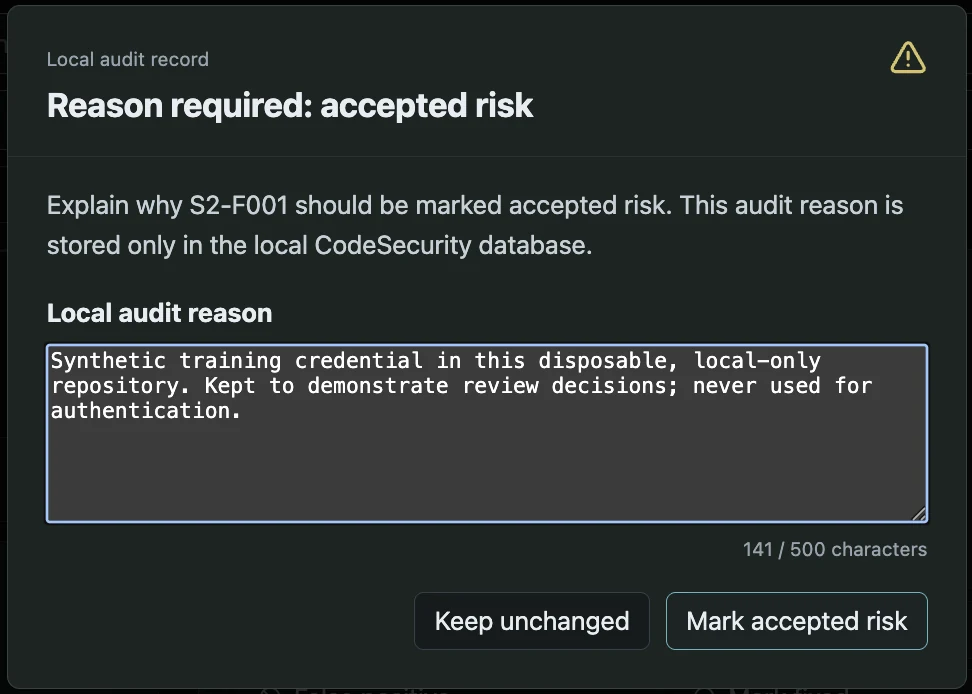
A disposition records a review decision. Save changed source and scan again to verify a correction.
Open the full imageFixed changes the recorded disposition. It does not prove that the code changed or that the repair works. Save the actual repair and run a new scan to obtain new evidence. Likewise, Needs review does not temporarily suspend blocking. Read the displayed gate effect when the action completes.
A lifecycle change cannot fill gaps in scanner coverage. A partial, failed or cancelled scan stays unsuitable as complete passing evidence even if every visible finding is exempted. A disposition can also invalidate an earlier outgoing-history approval, because the approval must match the current decision context.
| Action | Reason | Review and gate effect |
|---|---|---|
open | Optional | Clear suppression and exemption; include the finding in normal review and policy evaluation. |
needs_review | Optional | Keep the finding active for review; clear suppression and exemption. |
gate_exempt | Required | Keep the finding visible and exclude it from blocking gate counts. |
accepted_risk | Required | Record accepted risk; keep the finding visible and exempt it from blocking gate counts. |
ignore | Required | Suppress this finding from active gate counts. |
false_positive | Required | Record the false-positive decision and suppress this finding from active gate counts. |
fixed | Required | Record the fixed disposition and suppress this finding. This does not verify that source code changed. |
Apply bulk decisions deliberately
Check the intended rows and review the selected count before using the bulk lifecycle controls. Selection can span loaded pages. One action accepts at most 200 findings; reduce a larger selection rather than expecting it to be split into hidden operations.
Use the same reason standard as for a single finding. A shared decision is useful when the selected reports have the same explanation. When their source context differs, review them individually. Deletion is a separate confirmed action that removes the selected findings, rather than a lifecycle label that preserves them for later review.
After any mutation, let the detail and scan summary refresh. If another client changed the revision, reopen the current detail and make a new decision. An old selection must not be silently applied to a newer result.
Inspect scan scope and derived artifacts
Open Scan scope and derived artifacts to inspect the scope, refs, duration and supported outputs for the selected scan. A supported SBOM can expose Open or Download actions. Raw scanner stdout, stderr and native reports are temporary processing inputs, not a general downloadable archive.
Captured evidence and artifacts are bounded and sanitized using recognized patterns. Review their contents before sharing them. Expanding an evidence pane or downloading an SBOM does not recover all source files from the scan.
For an API client, begin with the exact scan and follow its bounded finding pages. Keep the query and revision fixed while following a cursor. If the revision changes or a cursor is refused, restart the read rather than combining old and new pages. The finding operations, scan operations and artifact operations document those contracts.
Continue with gate decisions when the review changes whether work can proceed, or push protection when you need to check the committed history you intend to send.