Source preview guide · 0.1.0
Use CodeSecurity inside VS Code
Navigate the Findings tree, Problems, hover, Quick Fix and inline annotations, with a complete reference for every extension command and setting.
Connect the editor you intend to use
The lomo-dev.code-security extension brings local scan results into desktop VS Code. Installing its VSIX does not install or start the backend. Follow Get started for source startup and install the reviewed or locally built VSIX through Extensions: Install from VSIX… in the intended profile.
The public extension declares VS Code ^1.135.0. Marketplace publication is pending. Browser-only VS Code, virtual repositories and unsupported remote hosts are not source contexts for this extension. For Remote WSL, install it in the selected WSL extension host.
Run CodeSecurity: Get Started to open the six-step guide: backend startup, connection and trust, repository selection, scanner preparation, findings and push protection. Detailed instructions opens the packaged notes for the selected step. Checkmarks show observed progress; opening the guide does not authorize source, scan a repository or install protection.
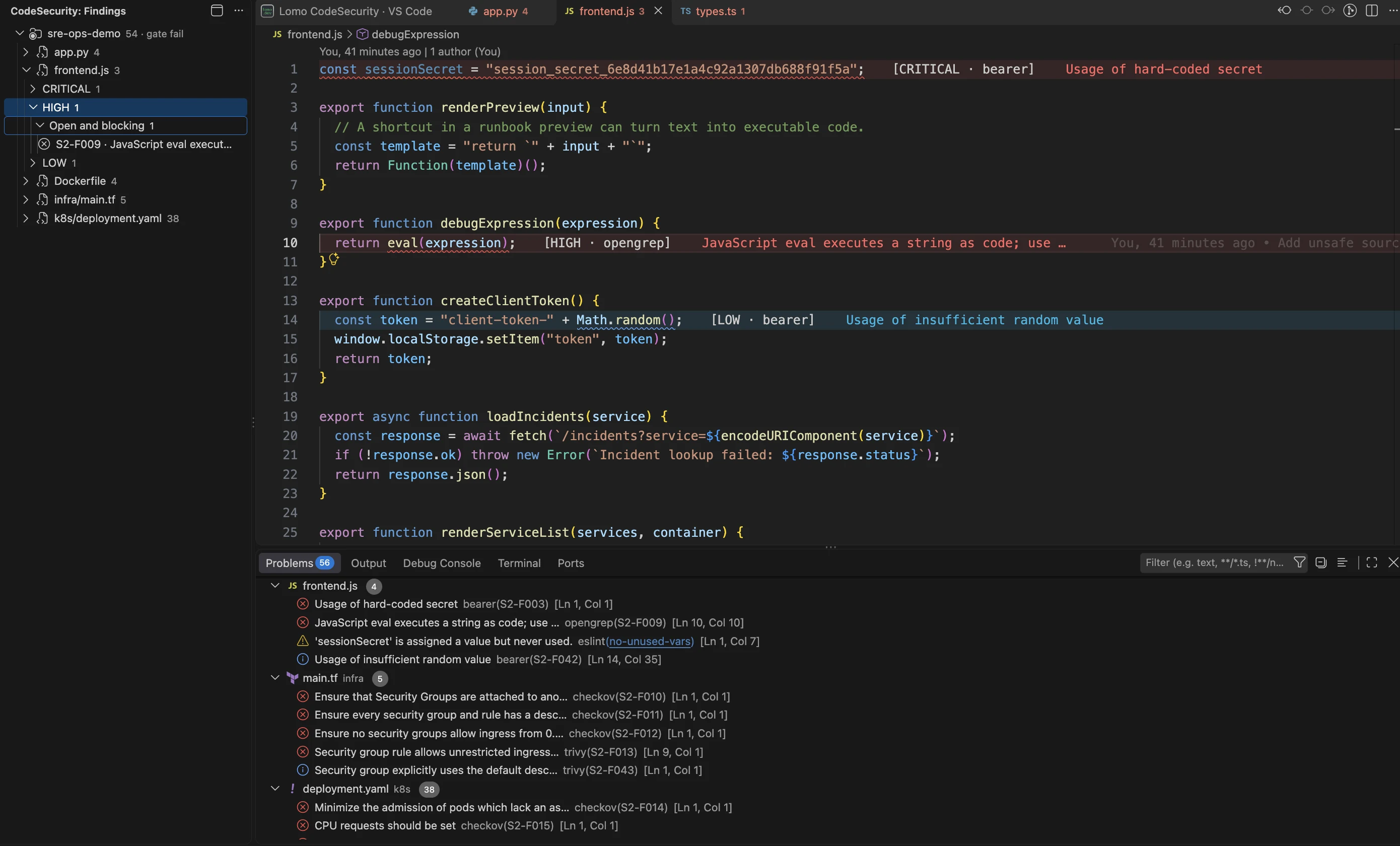
The Findings tree groups reports by repository, file and severity. Open an item to inspect its exact source location.
Open the full imageReview Workspace Trust normally. IDE enrollment is available in Restricted Mode, while source operations and the integrated dashboard require trust. The dashboard also requires persistent browser storage. CodeSecurity explains these conditions without changing them for you.
A pristine installation can offer the first-owner flow. Later profiles show Approval needed and require the owner’s review of the matching code, endpoint and profile in Settings > IDE access. The authentication guide explains that approval and browser pairing separately.
Choose repositories without moving the parent folder
When an opened parent contains several repositories, run Choose repositories in this workspace…. Inspect the bounded child discovery and choose the repositories you intend to manage. You can keep the parent folder open in the editor.
Selection, host source authorization, project registration and scanning are separate. Selecting a child does not grant access to its parent or siblings. Review the narrow authorization offered by the product before applying it. Removing a selection does not delete its project, revoke scanner access or remove push protection.
The Findings view also offers VS Code’s Add Folder to Workspace…. This changes editor membership only. If it creates an untitled workspace, the extension revalidates retained selections; when the original window cannot be identified, use Restore selections or select repositories again. Restoration does not grant new access.
An empty trusted workspace offers Get Started, Add Folder to Workspace… and Open Dashboard. With folders open, the welcome content adds Refresh Findings, repository selection and Scan Workspace Folders…. Restricted Mode offers the setup guide and Manage Workspace Trust.
Scan the scope you mean
Prepare the required scanner data in Tools > Prepare all scanners before a complete scan. Ordinary extension scans request complete coverage and do not invoke AI. They read saved disk content, so save your edits first.
Use the workspace command for the selected repository, the folder picker for a reviewed batch, or Explorer’s file and folder actions for narrower work. File and folder scans are labeled file only or folder only. They replace that repository’s current editor projection without establishing full-repository coverage; earlier scans remain in the workbench’s history.
A batch keeps an independent project, scan, job and gate for each selected root. Cancelling before submission starts nothing. Cancelling the current job leaves later roots unstarted; an uncertain outcome also stops later submissions. Use Jobs to reconcile the original work before starting another batch.
Refresh Findings reads results for selected roots. It neither scans changed files nor registers new projects. Independent root outcomes remain visible if one root fails. The scanning guide covers preparation, limited coverage and scan scope in detail.
Navigate the Findings tree
Open the CodeSecurity activity bar and its Findings view. Results group by repository, file, severity and lifecycle before the individual finding. Repository rows show counts and gate context; file-only, folder-only or unknown scope remains explicit.
Expand the branch you want, then select a finding to reveal its source. The row also offers separate editor and browser buttons. Open Finding in Web opens the exact scan-local finding in the paired dashboard; it does not start another scan or Advisor. Reveal Finding in Editor validates and opens its source location while respecting the editor group.
Use Open scan history to reach the selected scan in the workbench. Files are paged in bounded groups, and rich editor details have their own limits. When the tree offers Open full file findings in local workbench, follow it for the full view rather than assuming the loaded tree is exhaustive.
A historical committed-tree result remains attached to its tree. It cannot be revealed as a current workspace file. Missing, changed or unauthorized source must be reconciled before navigation can succeed.
Read the status bar as a current observation
The shield status item reports connection and the selected result’s context. Depending on state, it can show health, gate and finding counts, stale evidence, or Problems projection progress. Counts describe the selected scope; a file-only result is not a count of all problems in the repository.
Before a connection check completes, the status is not proof of service health. During reconnect or an unavailable service, retained results can be shown as cached. Pending enrollment shows the approval state and verification code.
Click the status item to follow its current action: connection recovery when unavailable, access review when approval is required, or the dashboard when connected. A successful reconnect does not grant source access or approve a repository’s push protection.
Use Problems for native diagnostic navigation
Open VS Code’s Problems panel to navigate CodeSecurity diagnostics alongside reports from other extensions. Each CodeSecurity diagnostic carries its scanner source and scan-local finding identifier. Selecting it opens the corresponding source range.

Problems lists individual scanner reports alongside diagnostics from the editor and other extensions.
Open the full imageProblems uses a dedicated CodeSecurity diagnostic collection. Its loading, unavailable or capacity-limited state is separate from the finding count. An explicitly limited projection must not be read as the complete scan result; use the tree and exact Web scan to inspect the remaining findings.
Turning inline annotations Off leaves Problems enabled. After a source edit, rename or deletion, old annotations can become stale or be removed. Save and rescan before relying on their evidence. Reopening the workspace or refreshing old findings does not make an earlier disk scan describe unsaved changes.
Inspect the source hover
Hover over a finding’s source range to read its identifier, severity, scanner and rule, lifecycle and gate effect, repeat information and bounded message. An unsaved-change warning tells you when the editor differs from the scanned disk content.
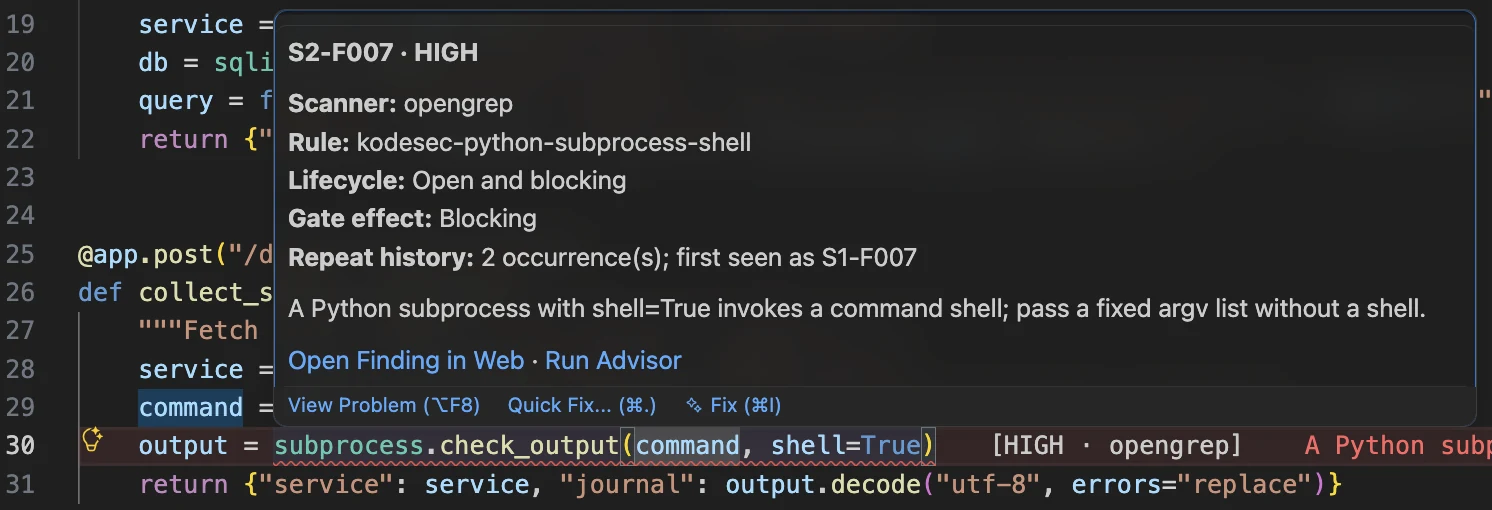
The hover connects a report to its evidence and available review actions.
Open the full imageThe source hover offers Open Finding in Web and Run Advisor for the exact finding when permitted. The end-of-line annotation hover is a read-only summary. When many reports overlap, the hover presents a bounded set; use the tree or finding chooser to select the intended report.
Opening a hover never triggers a model call. Treat the scanner message as the beginning of a review, then inspect the source and finding detail before deciding what to change.
Use Quick Fix as an action menu
Open VS Code’s Quick Fix menu at a CodeSecurity diagnostic. Its five actions operate on the selected finding:
| Quick Fix action | Result |
|---|---|
| Open Finding in Web | Opens the exact finding in the paired workbench. |
| Change CodeSecurity lifecycle… | Opens a reasoned lifecycle choice for that finding. |
| Run CodeSecurity Advisor | Requests explicit optional review through the supported Advisor flow. |
| Rescan exact finding file | Confirms a scan of that finding’s exact supported saved file. |
| Delete CodeSecurity finding… | Asks for confirmation before deleting the report. |
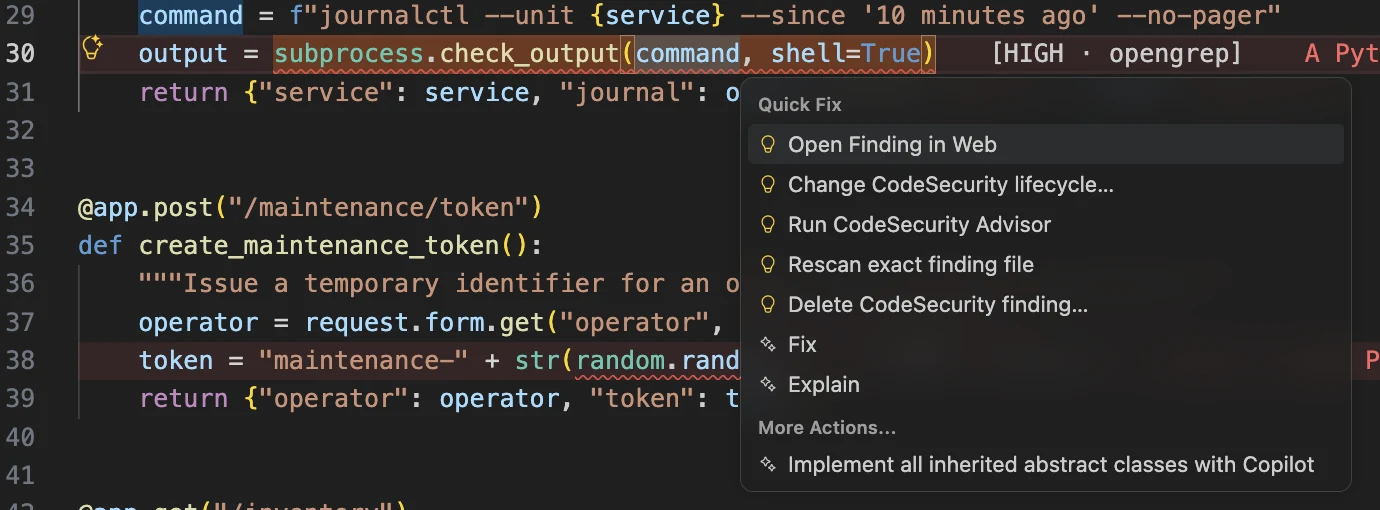
These actions open evidence or request review. They do not rewrite the source automatically.
Open the full imageThese actions do not automatically rewrite source. Other extensions may contribute their own Fix, Explain or Rewrite entries to the same menu; choose the intended provider’s action.
If multiple findings share the range, choose the report you intend to act on. Stale or mismatched context is refused rather than redirected to another report. The lifecycle choices include Needs review, Non-blocking for gate, Accepted risk, Ignored, False positive, Fixed and Open. The five exempting or suppressing choices require a reason, up to 500 characters.
An exact-file rescan prompts you to save when necessary and confirm the target. It neither scans the whole workspace nor widens its authorized boundary. Deletion requires its own confirmation. See finding lifecycle for gate effects and the difference between recording Fixed and verifying a repair.
Choose how much appears at line ends
Set lomoCodeSecurity.inlineAnnotations to the mode that suits your editor:
| Mode | Visible annotation |
|---|---|
off |
No CodeSecurity end-of-line annotation; Problems remains available. |
compact |
Severity and scanner, with a +N reports suffix when the line has additional reports. |
detailed |
The finding identifier as well as severity, scanner and any additional-report count. |

CodeSecurity provides the bracketed severity and scanner labels. ErrorLens provides the colored diagnostic text and line backgrounds; GitLens provides the blame text. Changing CodeSecurity’s annotation mode affects its labels, not the stored findings.
Open the full imageCompact is the default. These annotations cover visible editor lines and summarize the same findings used by the native review surfaces. A +N reports suffix does not merge their lifecycle or gate effects. Select the individual finding before changing it.
Find every command
The extension contributes 21 commands. VS Code prefixes their titles with CodeSecurity in the Command Palette. Contextual commands require a selected file, folder or finding and are intentionally absent from the general palette. The two workspace-scan entries share a title but serve different entry points.
Setup and connection
| Command | Identifier | Where and when to use it |
|---|---|---|
| Get Started | lomoCodeSecurity.gettingStarted |
Palette and Findings welcome content; opens the six-step guide. |
| Connect / Review IDE Access | lomoCodeSecurity.pair |
Palette and connection recovery; starts or reviews this profile’s enrollment. |
| Reconnect to Local Service | lomoCodeSecurity.reconnect |
Palette and unavailable status; retries the existing connection. |
| Add Browser to Lomo CodeSecurity | lomoCodeSecurity.addBrowser |
Palette and Findings title; offers a single-use, ten-minute invitation for another local browser. |
| Open Dashboard | lomoCodeSecurity.openDashboard |
Palette and welcome content; opens the integrated workbench and its pairing recovery when needed. |
| Choose repositories in this workspace… | lomoCodeSecurity.selectRepositories |
Palette and Findings welcome content; chooses exact repositories under the opened roots. |
Scanning and refresh
| Command | Identifier | Where and when to use it |
|---|---|---|
| Scan Workspace with Lomo CodeSecurity | lomoCodeSecurity.scanWorkspace |
Palette; scans the selected repository and asks for a root when necessary. |
| Scan Workspace Folders… | lomoCodeSecurity.scanWorkspaceFolders |
Palette and welcome content; reviews and confirms a multi-root batch. |
| Scan Workspace with Lomo CodeSecurity | lomoCodeSecurity.scanRootFolder |
Explorer title button; contextual workspace scan entry point. |
| Scan Folder with Lomo CodeSecurity | lomoCodeSecurity.scanFolder |
Explorer context menu; scans the exact authorized folder. |
| Scan File with Lomo CodeSecurity | lomoCodeSecurity.scanFile |
Explorer context menu on supported files; scans that file. |
| Refresh Findings | lomoCodeSecurity.refreshFindings |
Palette and welcome content; reloads selected roots’ existing results. |
Explorer’s scan menus require a trusted local or Remote WSL source context. File actions appear for supported code and configuration names, including Python, JavaScript/TypeScript, Go, Rust, Java, Ruby, PHP, C#, shell, YAML, JSON, TOML, Terraform, INI/CFG, Dockerfiles and the supported .env names. Their presence does not replace scanner readiness or source authorization checks.
Finding actions
| Command | Identifier | Where and when to use it |
|---|---|---|
| Open Finding in Web | lomoCodeSecurity.openFinding |
Finding row browser button, context menu, source hover and Quick Fix. |
| Reveal Finding in Editor | lomoCodeSecurity.revealFinding |
Finding row editor button and source navigation. |
| Change Finding Lifecycle | lomoCodeSecurity.setLifecycle |
Finding context menu and Quick Fix; records an explicit disposition. |
| Run Advisor | lomoCodeSecurity.runAdvisor |
Finding context menu, source hover and Quick Fix; asks before local model work. |
| Rescan Exact Finding File | lomoCodeSecurity.rescanFile |
Finding context menu and Quick Fix; validates and confirms the exact file. |
| Delete Finding | lomoCodeSecurity.deleteFinding |
Finding context menu and Quick Fix; confirms deletion. |
Git and Windows
| Command | Identifier | Where and when to use it |
|---|---|---|
| Protect Pushes… | lomoCodeSecurity.protectPushes |
Palette, Git repository menu and Source Control menu; reviews and applies clone-specific protection. |
| Check Outgoing Commits… | lomoCodeSecurity.checkOutgoingCommits |
The same Git entry points; reviews the intended outgoing history without pushing. |
| Reopen Workspace in Remote WSL | lomoCodeSecurity.reopenInRemoteWsl |
Windows palette; reopens the supported WSL workspace through Microsoft’s WSL extension. |
Git menus use the selected repository, while palette commands ask you to choose one. A stale or ambiguous selection is refused. Native Windows \\wsl.localhost source must be reopened in Remote WSL rather than treated as a native local-drive snapshot. The extension contributes no default keyboard shortcuts; use VS Code’s command and menu access or assign your own supported command binding.
Review both extension settings
| Setting | Default | Effect |
|---|---|---|
lomoCodeSecurity.apiBaseUrl |
http://127.0.0.1:8080 |
Exact loopback service origin. Changing it requires connecting this profile again; existing authority is not sent to the new origin. |
lomoCodeSecurity.inlineAnnotations |
compact |
Chooses off, compact or detailed for visible-editor annotations. Problems remains available. |
Settings in the local workbench control other concerns, such as scanner preparation, project gates, provider configuration and trusted clients. They are not additional VS Code configuration keys. Workbench Settings explains their saved state and drafts.
Work alongside other extensions
CodeSecurity has its own diagnostic collection and editor decorations. If line ends become crowded, set lomoCodeSecurity.inlineAnnotations to off; Problems and the Findings tree remain available.
The illustrated macOS profile uses GitLens 19.0.1, ESLint 3.0.34, ErrorLens 3.29.0 and Prettier 12.4.0. Read each entry’s provider: CodeSecurity reports security findings, TypeScript reports type errors and ESLint reports lint warnings such as no-unused-vars. ErrorLens shows diagnostics inline; GitLens adds blame and CodeLens.
Behavior can differ with other versions, profiles or platforms. When reporting a conflict, include the exact editor and extension versions and the action that caused it. See release status for the supported preview scope.
For connection or source failures, follow recovery. For the host approval, hook application and history checks behind the Git commands, follow push protection.