Source preview guide · 0.1.0
Start from source
Build the backend, connect your editor and follow a first repository from setup to a reviewed finding.
Choose a first repository
Start with a small repository whose contents you can inspect safely. A deliberately vulnerable example is useful for learning the review controls, but scan its files without running its application or deployment commands. Keep real credentials out of the example.
CodeSecurity has two working surfaces: the local web workbench and a VS Code extension. The backend runs scanners and retains projects, jobs and findings. The extension brings those findings into your editor and opens the paired workbench for detailed review. This documentation website is a separate, static reference.
The 0.1 release is a source preview. Check platform and release status before choosing an installation path. Marketplace publication is pending, so the extension is installed from a reviewed VSIX.
Start the backend
Follow the installation walkthrough and the pinned platform setup instructions. On macOS or native Linux, run this from the reviewed product source directory:
python3 scripts/start-lomo.pyThe launcher builds and starts the backend. It preserves your existing VS Code profile and does not install or open the extension by default. The initial build needs space on both the host and Docker storage; review the prerequisites before starting it.
Windows uses the separate Windows source startup path. Choose native Windows VS Code or Remote WSL deliberately. A local extension installation does not also install it in the WSL extension host.
Repeat startup with the same installation state and options when returning. A new state directory creates a different installation; it is not a way to recover an existing one.
Connect the intended editor profile
- Open the repository in the VS Code profile you want to use.
- Follow the installation walkthrough to build or obtain the reviewed VSIX, then use Extensions: Install from VSIX… in that profile.
- Run CodeSecurity: Get Started from the Command Palette.
- Review VS Code Workspace Trust for the actual workspace.
- Follow Connect and trust, or run CodeSecurity: Connect / Review IDE Access directly.
On a pristine installation, the first eligible profile can claim the one-use owner authority. Later profiles need the exact pending request approved in an existing owner’s browser. The authentication guide explains both paths and the separate browser membership.
The six-step Get Started panel covers backend, connection, repositories, scanning, review and protection. Its progress marks reflect what the extension observed. Every action checks the current state again, so a past checkmark is not a substitute for current readiness.
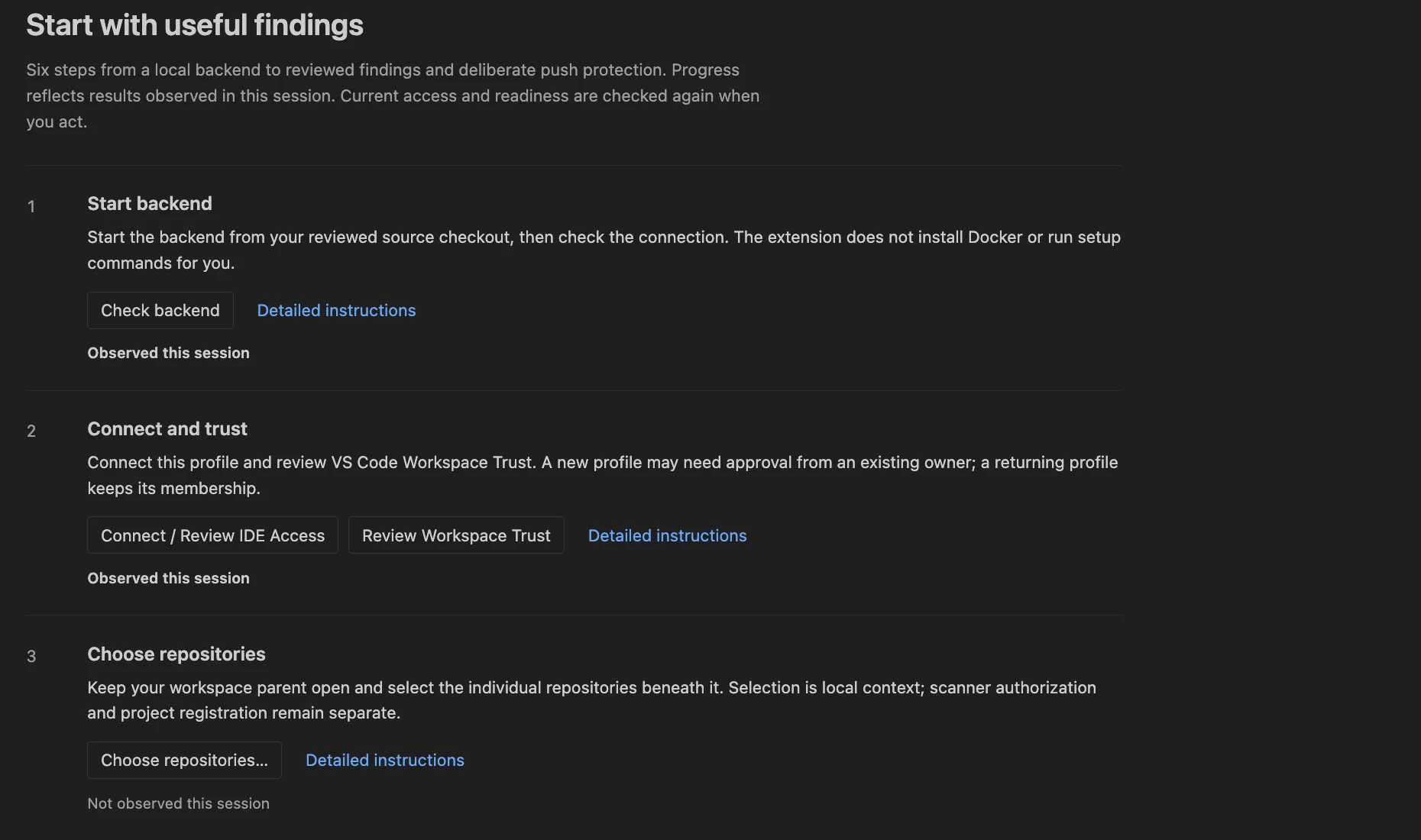
Get Started keeps connection, Workspace Trust and repository selection as separate steps.
Open the full imageSelect and authorize source
For a single repository, keep that folder open. For several repositories under one parent, use CodeSecurity: Choose repositories in this workspace… and select the individual children. The parent can stay open as an editor container.
Workspace membership, repository selection and scanner access are separate:
- Add Folder to Workspace… changes what VS Code has open.
- Choose repositories… records the exact child contexts the extension should use.
- Authorize another source root in Projects prepares the explicit host action that gives scanners read-only access.
- Add Project registers a directory within an authorized boundary.
Review the copied host command and run it from the backend’s source checkout. Authorize the narrow repository roots you intend to scan, not their broad common parent. The source and scans guide walks through the resulting checks.
Prepare scanners and run the first scan
Open the dashboard and choose Tools > Prepare all scanners. Follow the existing preparation job until the enabled scanners have verified binaries, rules and data. A healthy backend or a completed download alone does not establish scanner readiness.
In Projects, select the registered repository. Its Scan setup checklist checks core services, source access and scanner data. When those prerequisites are ready, review the scan scope and start a complete-coverage scan. VS Code also offers Scan Workspace with Lomo CodeSecurity and Scan Workspace Folders… for explicit editor-led submission.
Keep the returned scan and job identity. Open Jobs if you leave the page or lose the connection; reopening the page does not start another scan and closing it does not cancel accepted work.
Complete the first review
- Open Findings for the completed scan.
- Read its coverage and gate state before interpreting the finding count.
- Select a finding and inspect its scanner, rule, location and captured evidence.
- Open the validated source location in the intended IDE and read the surrounding code.
- Record a reasoned disposition if appropriate. After a code change, save and run a new scan for new evidence.
A completed scan can fail its policy gate. An empty list can also belong to incomplete analysis. The finding guide and gate guide explain how to distinguish these results.
Optional Advisor adds a second reading of a finding. Once the review workflow is familiar, apply push protection separately to the intended clone. Scanning a workspace does not install a Git hook.
Find the next control
Use the workbench tour to locate Projects, Tools, Jobs and Settings. The VS Code integration guide covers the tree, Problems, hover, Quick Fix, all commands and both extension settings. For connection or interrupted-work problems, begin with recovery rather than recreating installation state.